


Introduction to Creating and Sharing Articles
Articles in AcceleratorApp allow you to deliver valuable content to your community — from guides and updates to educational resources. You can enrich articles with images, videos, and file attachments, and share them through the Resources section or integrate them directly into Courses for a more structured learning experience.
Where to Find Articles
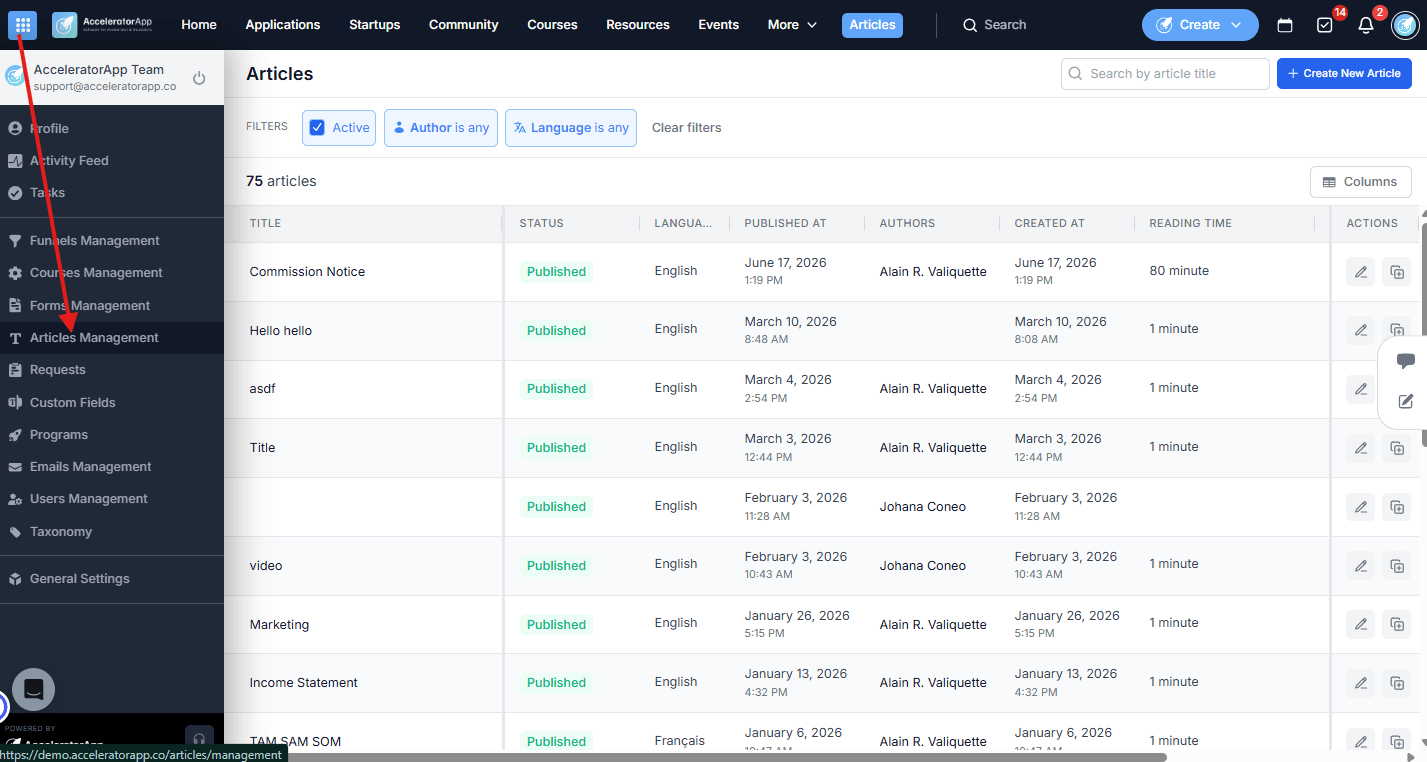
Access the Articles Manager from the sidebar menu. This is where you can manage existing articles, create new ones, and control how they are shared with your community.
or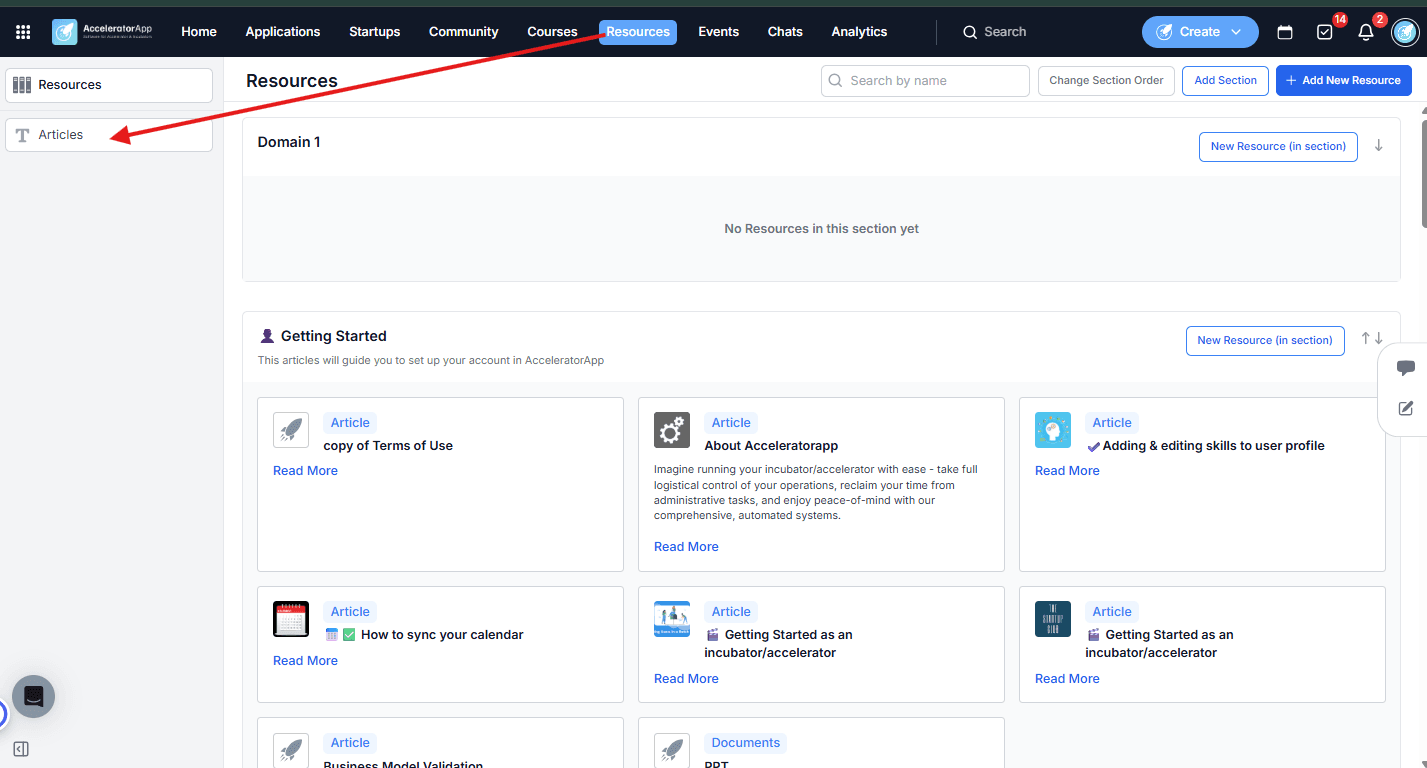
Step-by-Step
1. Create a New Article
a. From the sidebar menu, go to the Articles Manager.
b. Click Create New Article to open the article builder.
c. And that's it.
2. Add Content
Use the content builder to structure your article. Available content blocks include:
- Headings — for titles and subtitles in various sizes.
- Text box — for plain text paragraphs.
- Numbered list — for step-by-step sequences.
- Bulleted list — for unordered items.
- Media — embed videos, images, or audio from external sources, or upload files directly.
- Tables — organize information into rows and columns.
- Columns — arrange content side by side.
3. Publish the Article
a. Once your content is ready, click Publish to make the article live.
b. Published articles become available to share within your community.
4. Share via Resources (Admins only)
a. Navigate to the Resources section.
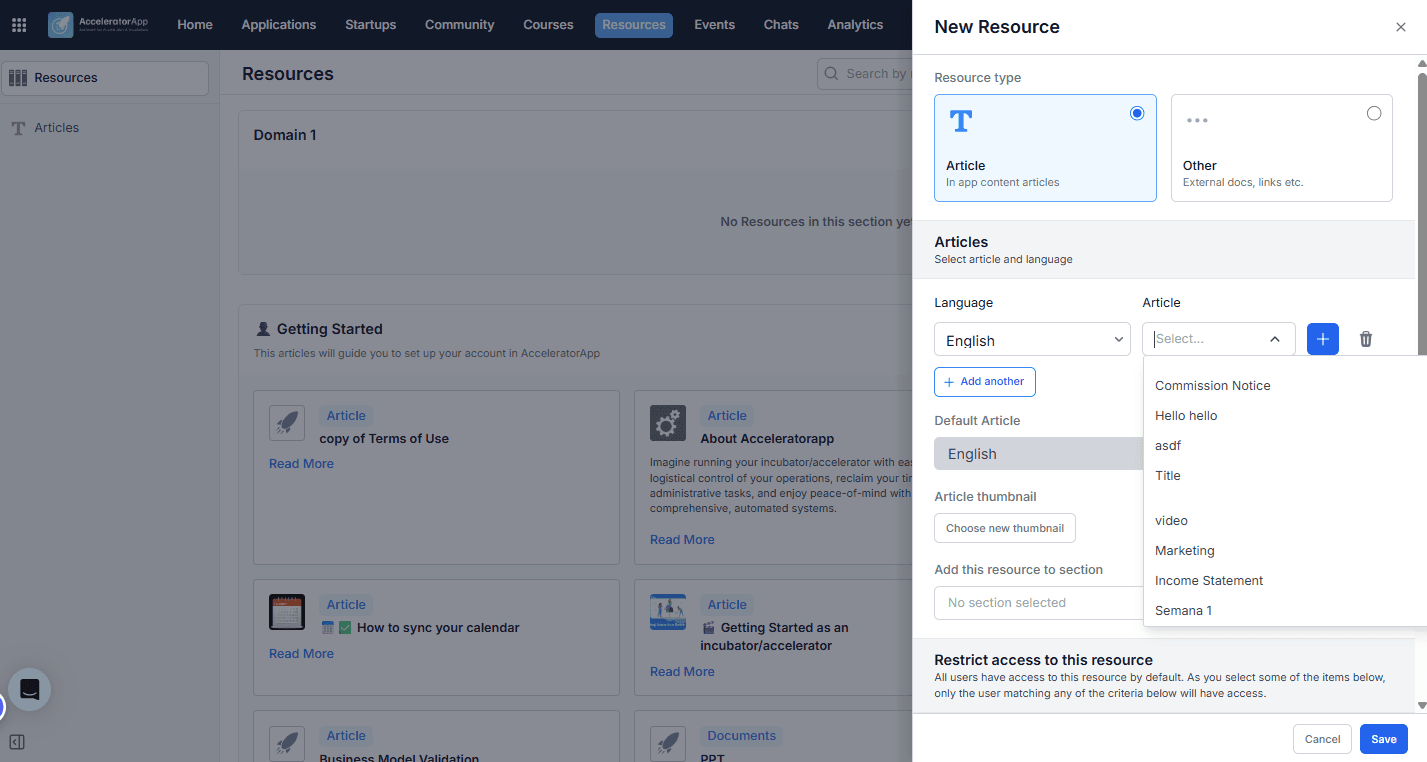
b. Click Add New Resource and select Article as the resource type.
c. Choose an existing article or click Create New Article to build one on the spot.
d. Fill in the resource details — name, description, and section.
e. Use Restrict Access to control visibility based on user role, industry, program, or tags.
5. Integrate into Courses (Admins only)
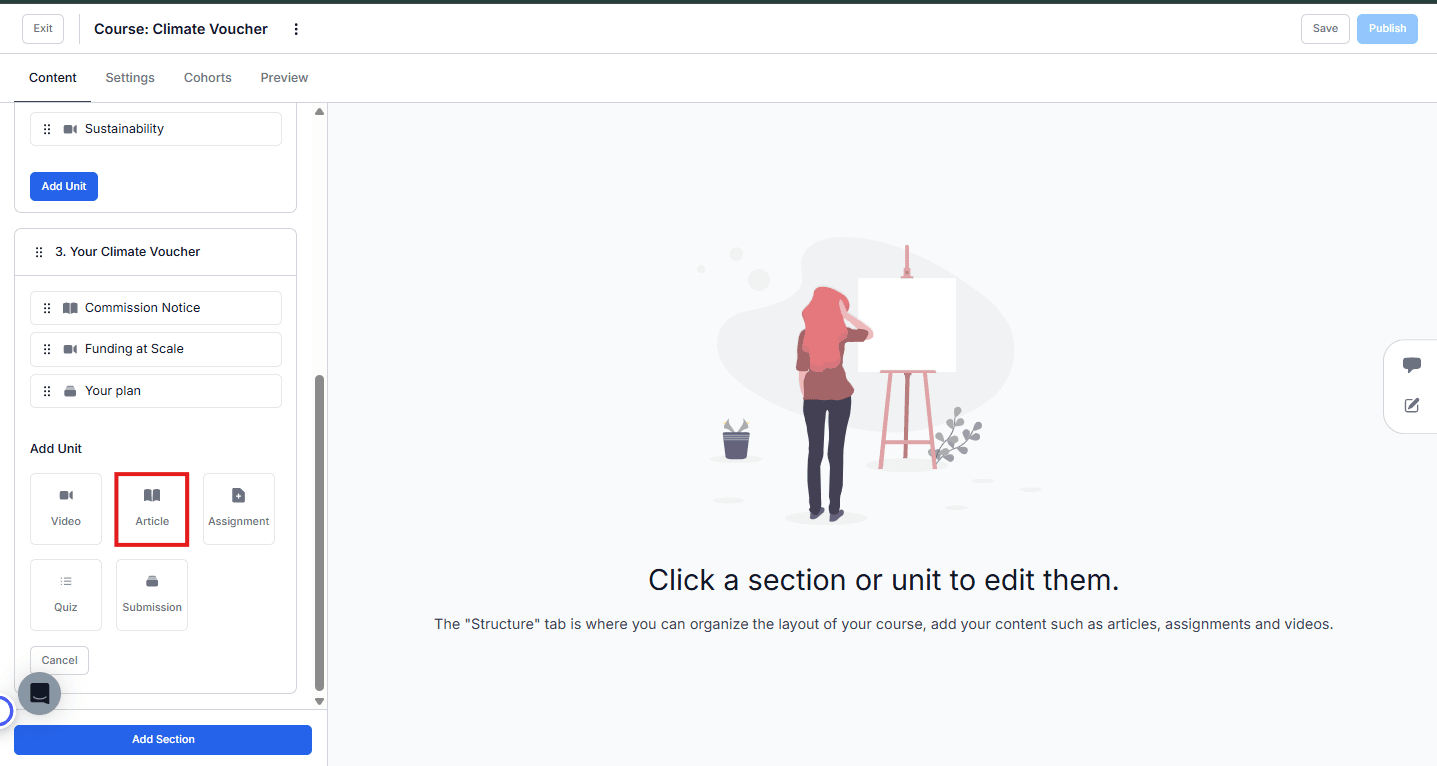
Articles can also be linked directly to course modules as supplementary learning materials, giving learners access to structured content alongside hands-on course activities.
Best Practices
- Structure your content clearly. Use headings, bullet points, and multimedia to make articles easy to scan and digest.
- Use access control intentionally. Restrict resources and courses access by role, program, or industry to make sure the right content reaches the right audience.
- Keep content up to date. Review and refresh articles regularly — outdated information undermines trust and engagement.